
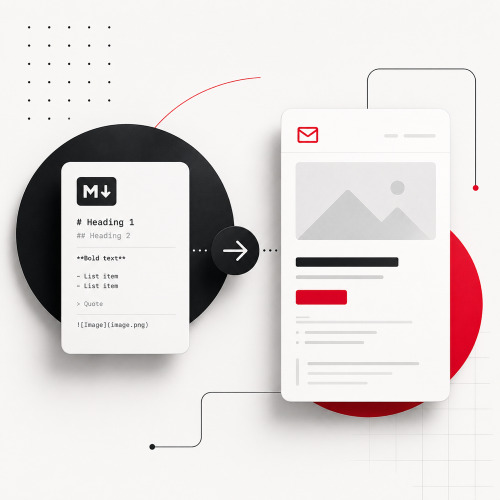
A typical workflow step today looks like this: You write a text or have it created directly with an AI chat, let it be refined, corrected, or structured there, and then copy the result into a Gmail email. It's precisely in this last step that a small but persistent friction point emerges. Either raw Markdown source code lands in the email window because Gmail doesn't interpret the syntax. Or a mess of styles from the source interface that looked black on gray there arrives in the email with foreign fonts, peculiar spacing, and mismatched background colors. The manual cleanup of these styles is the actual daily burden.
For precisely this break between AI output and email dispatch, we've built a small browser tool. It accepts Markdown, renders it into clean HTML, and places the result in the clipboard in such a way that Gmail adopts the formatting without bringing along unwanted style remnants.
Turn Markdown into HTML that Gmail renders cleanly on paste. Headings are converted to bold paragraphs automatically, so the mail looks identical in every inbox.
Where the Workflow Breaks
Texts are rarely created linearly today. A first version is formulated in the editor, then revised in an AI chat, then the result moves into an email or a ticket. Markdown is the natural intermediate format. It's compact, readable, and standard in Slack, Linear, Notion, GitHub, and all major AI tools. Anyone who doesn't just copy AI output but consciously revises it will find dedicated reading in our notes on typical ChatGPT phrases and their optimization.
As soon as the same text lands in Gmail, there are two typical outcomes.
From the editor raw Markdown syntax moves into the email window. Stars, pipes, brackets: nothing gets formatted. Recipients read raw code instead of lists or tables, the impression appears unprofessional.
From the AI interface it looks good at first because lists and bold text are copied along. In the email window, however, it becomes apparent that unwanted styles have also traveled along: a different font, a gray background behind code snippets in the wrong tone, divergent line spacing, sometimes even the dark theme of the source interface. Anyone who wants to maintain the impression of a clean business email then clicks through Gmail's formatting toolbar and removes piece by piece what doesn't fit. Acceptable for one email, but a constant friction with several per day.
What the Tool Does
The converter opens locally in the browser, without installation and without data transfer. On the left is an input field for Markdown, on the right the preview. A click on "Copy" places two variants in the clipboard: once clean HTML with minimal, email-compatible inline styles, once plain text as a fallback. Then Cmd+V in Gmail, done.
Three technical decisions ensure that the output in the email window reliably looks clean.
- Headings become bold paragraphs. Email clients frequently render
h1oversized and disproportionate to the surrounding text. A bold paragraph works like a content subheading without destroying the appearance. - Inline styles instead of classes. Gmail removes embedded stylesheets before display and rewrites class names. Essentially only values directly in the
styleattribute are permitted. The converter sets precisely these when copying on tables, lists, code blocks, and highlights. - No foreign styles in the baggage. Because the text is freshly rendered from pure Markdown, neither foreign fonts nor dark backgrounds nor invisible container classes from the source interface come along. The cleanup is eliminated.
In the background, the marked library parses the Markdown text live, a small transformation step converts headings into bold paragraphs, and the modern Clipboard API writes the result in two formats to the clipboard. For older browsers or restrictive permissions, a selection-based fallback applies.
Anyone who wants to dive deeper into the topic will find an overview of often overlooked browser APIs for developers with us that support precisely such workflow scenarios.
Where the Limits Lie
The tool is deliberately narrowly scoped. It's optimized for Gmail Web. In Apple Mail it works equally cleanly, in Outlook for Windows minor deviations may occur because the Word rendering engine runs in the background there. Complex layouts with background colors, branding elements, or pixel-perfect columns belong in a professional newsletter pipeline, not in a copied email. And images or signature graphics are not covered because they would significantly broaden the scope.
These limits are not a deficit but the result of a conscious focus: Precisely one workflow should reliably become faster, not everything at once.
Why Small Tools Like This Are Worth It
From our project work, we know that the biggest productivity gains rarely arise from large platform releases. They arise where recurring friction is systematically removed. Manually cleaning up an email is a trifle, five times a day it becomes a silent time waster whose costs no one really quantifies.
Precisely for such silent friction points, lightweight browser tools are well suited. They're built in a few hours, need no backend, transfer no data, can be adapted to internal standards, and work immediately. In the context of developing internal web applications, we regularly see how strongly this class of tools affects a team's daily work, even though each individual one remains small and unspectacular.
Conclusion
Anyone who composes texts with AI help and then sends them by email knows the moment when a finished answer becomes a cleanup job. With a compact browser tool of around 200 lines of code, this step can be eliminated. Markdown in, clean email text out, without style remnants, without font salad, without clicking through the formatting toolbar.
Anyone who wants to test the converter themselves can use it directly in the browser above in the article. Adjustments to your own standards, such as additional style specifications or a fixed signature, are done in a few minutes.